


Photo Editor - Collage Maker
4.921.82K Reviews
App Specs
- Version
- 1.58.274
- Updated On
- License
- Free
- Downloads
- 100,000,000+
- Developer
- Photo Editor & Collage Maker
- Categories
- Photography
- Platform
- Android, iOS
Screenshots

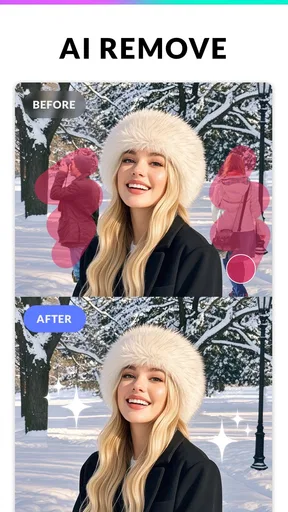
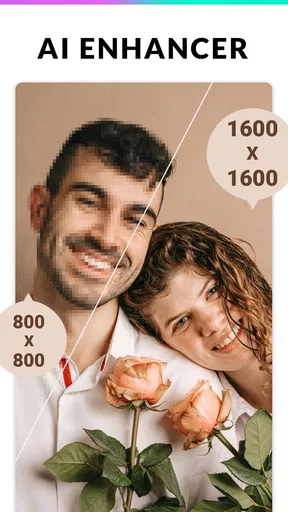
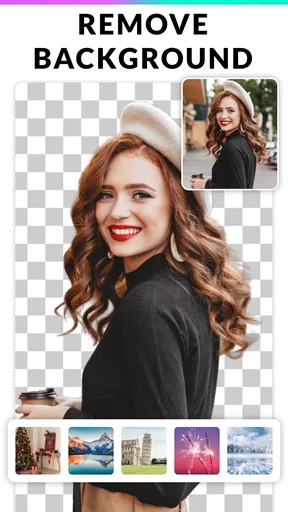
 Analysis by AppCompare
In a household where several people share photos on one device, an editing app can be more than a way to polish pictures: it can help turn a pile of camera-roll moments into something easy to show or send. I like having a straightforward route from choosing photos to arranging them into a collage, especially when everyone wants to contribute an image to a birthday recap or a weekend memory. The important practical boundary is that editing together does not automatically mean sharing accounts or handing over a device indefinitely; I’d keep the phone owner in control of what gets selected, changed, and shared.
A shared project works best with a little planning
For a family collage, I’d decide on the purpose before opening the editor: a quick group-chat image, a keepsake to print, or a set of photos for social media. That choice helps determine whether I should prioritize a tidy grid, readable text, or a more playful arrangement. When several people are suggesting pictures, it is also useful to choose a small, coherent set first rather than trying to fit every image into one layout. A collage is usually clearer when each photo has room to be seen.
One useful workflow is to make a rough version, check the crop in every cell, and only then add decorations. A face that looks well placed in the original can end up cut off after fitting it into a grid. I’d also keep the text brief and check it at the size the finished image will actually be viewed. These small checks matter more than piling on effects, particularly when the collage is meant to be a record of a real event rather than a poster.
Keep selection and sharing under the owner’s control
On a shared phone, I’d treat the editing session as a handoff of the screen, not of the whole photo library or the owner’s social accounts. The person using the app can help choose pictures and suggest a layout while the device owner makes the final call about what stays in the project and where the result goes. This is especially sensible for images of children, guests, or anyone who may not want a photo posted publicly.
I would also pause before using a direct sharing option. It is convenient to send a finished image from an editing workflow, but convenience can make it easy to publish before everyone has checked the selection. Saving the result first and reviewing it together gives the owner a chance to catch a misspelled name, an awkward crop, or a photo that was not meant to be included. For a private family memory, sending the finished collage to a small conversation may be a better fit than posting it broadly.
Age context and expectations
This is a photography app rather than a social network, and it is rated for Everyone. That makes it approachable for a range of ages, but an age rating does not replace an adult’s judgement about device access, the pictures being edited, or the destination chosen for sharing. If a younger family member is helping, I’d make the sharing decision an adult step and keep the activity focused on arranging images, adding text, and learning how edits change a picture.
The app is free to download, with in-app purchases listed from $0.99 to $24.99 per item. For a shared device, I’d make sure the person responsible for purchases understands that paid items may be available before letting a child explore unsupervised. The app’s developer is Photo Editor & Collage Maker, and its broad appeal is reflected in an average rating of 4.9 from around 1.2 million ratings, alongside more than 100 million installs. Those figures suggest that many people find the basic idea useful, though they do not guarantee that every tool or workflow will suit your household.
Worth Reading Before You Choose

Baby Panda World Brings Quick Play to Modern Phones, but Its Game Library Feels Busy

ESPN’s Live Game View Makes Following Close Games Easier

QuizzLand Review: A Good Fit for Short Trivia Breaks, Not Every Player

Basketball Stars: Multiplayer Is Fast, but Can It Recover When Matches Go Wrong?

WEBTOON Turns Phone Updates Into a Better Reading Routine

Link to Windows Runs on Shared Habits, Not Social Feeds
Have you ever tried to create a stunning collage or edit your photos to perfection, only to be left tangled in a web of complicated tools and overwhelming options? Well, I’ve been there too, and that’s when I stumbled upon the Photo Editor - Collage Maker app. Let me take you through my experience with this nifty little tool that promises to make photo editing a breeze.
A User-Friendly Interface that Welcomes You
Right from the get-go, the Photo Editor - Collage Maker greets you with an interface that feels like a warm hug. It’s intuitive, and you don’t need a degree in graphic design to navigate through it. I was pleasantly surprised by how everything is neatly organized, with clear labels and icons that make sense. The main screen presents you with two primary options: editing photos or creating collages. Simple, right?
Editing Photos Like a Pro
When I dove into the photo editing section, I was greeted with a plethora of tools that are not only powerful but incredibly easy to use. You’ve got your basics like cropping, rotating, and adjusting brightness, contrast, and saturation. But the real magic happens with the filters. There’s a whole range of them, from vintage to modern, each transforming your photo into something unique. I found myself experimenting with different styles, and it was super fun to see each transformation.
One feature that I particularly loved was the blemish removal tool. It’s like having a mini Photoshop in your pocket. It worked wonders on a selfie I took on a not-so-great skin day. And the best part? The edits looked natural, not overdone. So, if you’re someone who loves a good selfie, this app’s got your back.
Collage Creation Made Simple
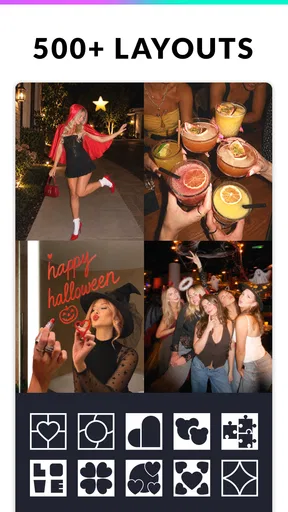
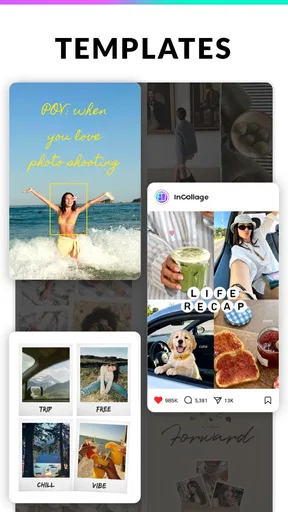
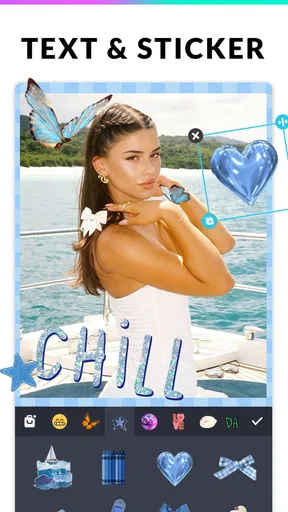
Now, onto the collage maker. This part of the app is where creativity really takes flight. With a range of grids and templates to choose from, you can turn your photo collection into a visually appealing story. I tried creating a collage with my travel photos, and it was a breeze. I could easily drag and drop images into the templates, adjust borders, and even add fun stickers and text.
The flexibility is what impressed me the most. You’re not confined to rigid templates; you have the freedom to customize each element. Changing background colors, adding patterns, or even doodling on your collage adds a personal touch. Plus, the app allows you to save your creations in high resolution, which is perfect for printing or sharing on social media.
Sharing Your Creations
Speaking of sharing, the app makes it incredibly easy to showcase your masterpieces. With direct links to social media platforms, you can post your edited photos or collages with just a tap. I shared a few of my creations on Instagram, and the positive feedback I got was amazing. It’s like having a mini art gallery in your pocket!
What’s also nifty is the option to save your projects in different formats. Whether you’re looking to keep a high-quality version for printing or a lighter one for quick sharing, the app’s got it covered. It’s the kind of flexibility that ensures your work looks great no matter where it ends up.
The Final Verdict
In a world full of photo editing apps, Photo Editor - Collage Maker stands out with its simplicity and power. It’s packed with features that cater to both amateur photographers and seasoned pros, making it a versatile tool for anyone looking to up their photo game. The ease of use combined with professional-grade tools makes it a must-have on your device.
So, if you’re tired of struggling with complex software or just want a reliable app that delivers stunning results effortlessly, give Photo Editor - Collage Maker a shot. Trust me, your photos will thank you for it!
Where it fits among photo apps
I see this app as a practical middle ground between a phone’s built-in editor and a more specialized photo-editing program. The built-in option is often quicker when all I need is a small crop or a brightness adjustment. Here, the attraction is having individual edits and collage-making in one place, with grids, stickers, text, and decorative choices available for a more composed result. If I want detailed control over layers or a carefully tuned professional image workflow, I’d choose a dedicated editor instead; the approachable layout here is more valuable for quick creative jobs than for intricate retouching.
That distinction helps set expectations. The large selection of layouts and embellishments can make a simple project feel flexible, but it can also tempt me to keep adding things after the collage is already clear. I get better results by choosing one visual idea—such as a clean travel recap or a playful birthday grid—and limiting the extra decoration to what supports it. For a small screen, a restrained design is often easier to read than a collage filled with competing stickers and captions.
Small choices that improve the finished image
When I’m making a collage from mixed photos, I look for a shared thread before picking a template: similar colors, one event, or a sequence that tells a story. A grid is useful when the images deserve equal weight; a layout with a larger feature photo works better when one moment should lead. I check that the most important picture is not squeezed into a narrow cell, then adjust the surrounding images to support it. This is a simple way to make the result feel deliberate rather than like a random collection.
For portraits, I’d make the light and crop adjustments before applying a strong filter. A filter can unify pictures taken under different conditions, but it can also change skin tones or make a face look less natural. I prefer to compare the edited image with the original and pull back if the effect starts to distract. The blemish tool is handy for a small touch-up, yet I would not treat it as a substitute for careful portrait retouching when precision matters.
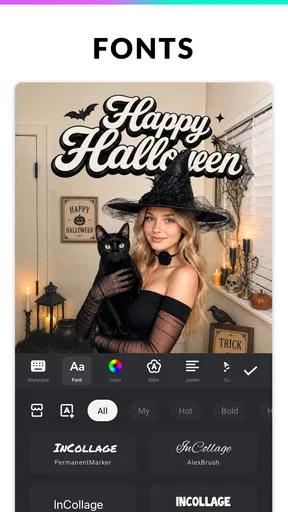
Text is another place where restraint pays off. A short date, location, or caption can explain why the pictures belong together; several lines can shrink until they are hard to read. I’d place words where the image is not already busy and inspect the collage at its likely viewing size before saving. For something intended as a print, I would favor a less crowded layout and keep important details away from the edges, rather than designing only for a quick glance on a phone.
What to expect from the practical workflow
The app is free, so it is easy to try the basic editing and collage approach without committing to a purchase. Paid in-app items range from $0.99 to $24.99 each, so I’d explore the available tools first and only consider paying if a specific option would genuinely improve the projects I make. I would not assume that every decorative item is necessary: the core value for me is selecting pictures, arranging them, and making modest edits without switching between several apps.
It is also worth thinking about the finish before starting. A social post benefits from a layout that remains legible on a small display, while a keepsake may call for larger pictures and less text. The app’s version is 1.564.272, and it requires Android 8.0 or later. It has been available since May 24, 2017, so it is not a brand-new release; still, I’d check that the version offered on my device is compatible before planning a project around it. Those details matter most when I’m setting up an older or shared phone.
For an everyday example, imagine coming home from a family outing with pictures scattered across several people’s phones. I’d gather a handful of favorites on the device being used, choose a layout that gives the best moment room to stand out, and use a short caption rather than trying to narrate the whole day in text. Before sharing, I’d ask the people in the pictures whether they are comfortable with the selection and destination. The app can help assemble the image, but the household still needs to make the decision about who sees it.
Who will enjoy it, and who may prefer another tool
I’d recommend it to someone who regularly makes collages for trips, celebrations, school memories, or casual social posts and wants editing and layout tools together. It can also suit a shared household device when the owner stays involved in choosing images and approving any sharing. People who only make an occasional crop may be happier with the editor already built into their phone, while photographers who need exact control over complex retouching may find a more specialized app a better match.
There is a trade-off in offering many ways to decorate a collage: choice is useful, but it can slow down someone who wants a very minimal, one-tap result. I’d start with the layout and the pictures, then add only the edits that solve a visible problem. That approach keeps the experience approachable and prevents the finished image from feeling overworked. If you prefer a strict professional workflow, or need collaboration and account-management tools for a group, this is not the app I would rely on for those jobs.
Overall, I think this is most appealing as an accessible, all-in-one option for turning everyday photos into something more considered. It gives casual editors room to experiment without requiring them to learn a complicated desktop-style process, and the collage tools make it especially useful when the story matters as much as any single picture. I’d use it for personal projects and household keepsakes, while keeping purchases, photo selection, and public sharing decisions deliberate. If that sounds like the way you take and share pictures, it is worth trying; if your priority is advanced precision or minimal editing, a simpler or more specialized alternative will serve you better.
Pros
- User-friendly interface for easy navigation.
- Wide variety of filters and stickers.
- High-quality output with minimal effort.
- Supports multiple formats for saving.
- Seamless social media sharing options.
Cons
- Contains occasional in-app ads.
- Some features require premium purchase.
- Limited free templates available.
- May lag on older devices.
- Requires internet for some functions.
FAQs for Photo Editor - Collage Maker
What features does Photo Editor - Collage Maker offer?
Photo Editor - Collage Maker provides a wide range of features for enhancing and personalizing photos. Users can access a variety of filters, stickers, text options, and tools for adjusting brightness, contrast, and saturation. Additionally, the collage maker function allows you to combine multiple photos into creative layouts with customizable backgrounds and borders.
Is Photo Editor - Collage Maker suitable for beginners?
Yes, Photo Editor - Collage Maker is designed to be user-friendly, making it suitable for beginners. The app features an intuitive interface with straightforward navigation, allowing users to easily access editing tools and features. Tutorials and user guides are also available within the app to help newcomers understand how to use its functions effectively.
Are there any in-app purchases or ads in Photo Editor - Collage Maker?
Photo Editor - Collage Maker is free to download, but it does include in-app purchases and ads. Users can purchase premium features to unlock additional filters, effects, and tools. Ads are present in the free version but can be removed by upgrading to the premium version, enhancing the overall user experience.
Can I share my edited photos directly from the app?
Yes, Photo Editor - Collage Maker allows for easy sharing of edited photos directly from the app. Users can instantly share their creations on social media platforms such as Instagram, Facebook, and Twitter. The app also provides options to save images to your device or share them via email or messaging apps.
Does Photo Editor - Collage Maker support high-resolution images?
Photo Editor - Collage Maker supports high-resolution images, ensuring that your photos maintain their quality after editing. The app allows users to export images in various resolutions, making it suitable for both online sharing and printing. However, it's important to check your device's storage capacity when handling large files.


